Connect an AI agent
NoshChat has an MCP server, so an AI assistant that speaks MCP can keep your food log for you: log what you ate, read your day, keep your cupboard and set your targets.
Creating a key
Section titled “Creating a key”Open Agents, say who the key is for (such as “Claude Code on my laptop”), and choose Mint an agent key.
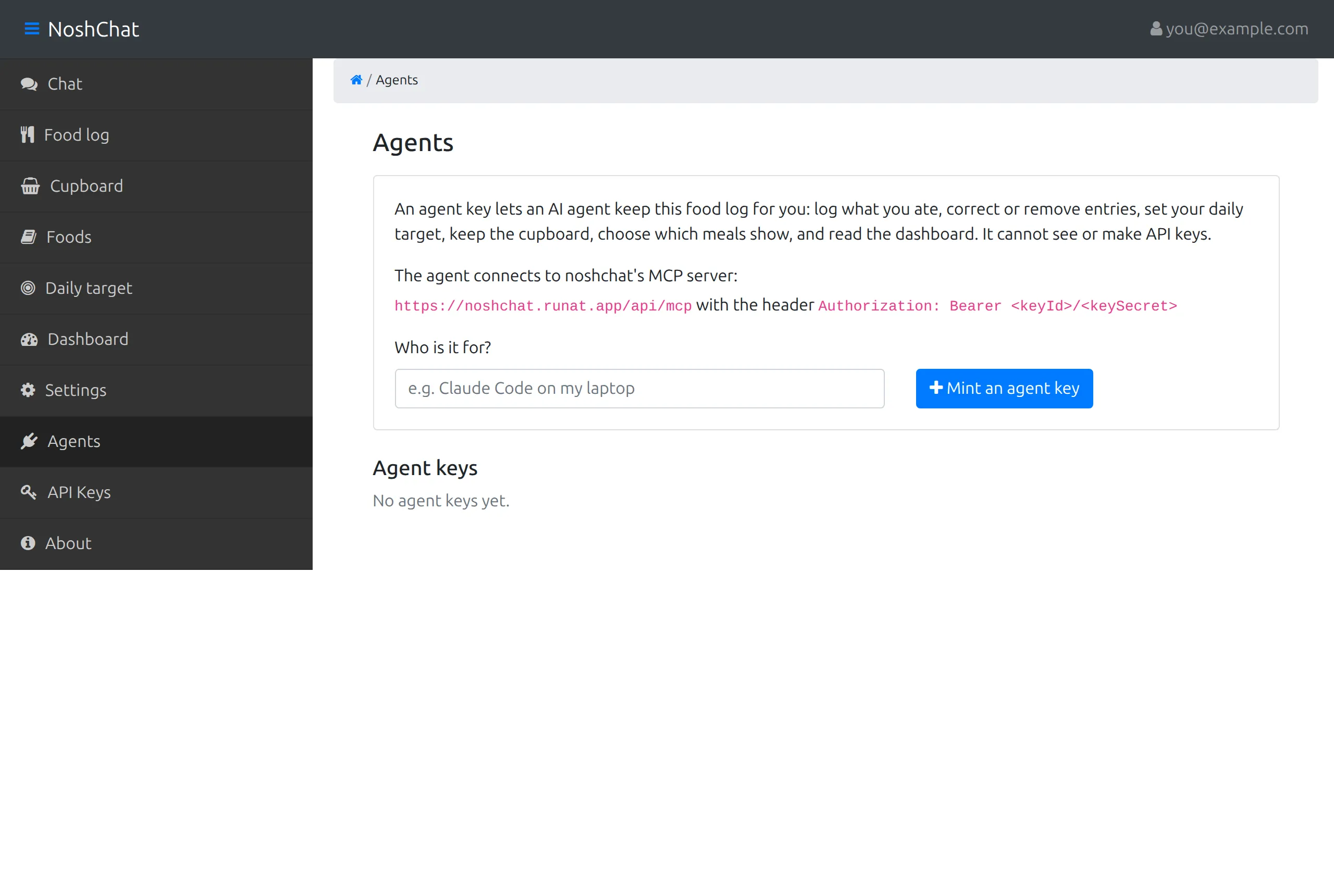
The page always shows the server’s address and the header an agent sends. When you mint a key, it shows the line that connects it, with the key filled in. It’s shown once, so copy it then. For Claude Code it looks like this:
claude mcp add --transport http noshchat https://noshchat.runat.app/api/mcp \ --header "Authorization: Bearer <your key>"Any MCP client that can send a header connects the same way, Cursor and VS Code included. Connectors in claude.ai and ChatGPT can’t connect yet.
What an agent can do
Section titled “What an agent can do”An agent key reaches your food log and nothing else:
- send messages to the chat, just as you would, and answer its questions,
- read and change entries, and mark training and rest days,
- read and change your daily target, cupboard and meal settings,
- list and remove remembered foods,
- read your statistics.
It can’t see or create keys, and it works only for NoshChat. Each key is limited to 60 requests a minute and 5,000 a day.
Revoking a key
Section titled “Revoking a key”Every key is listed under Agent keys. Revoke one there and it stops working within a minute.